Options#
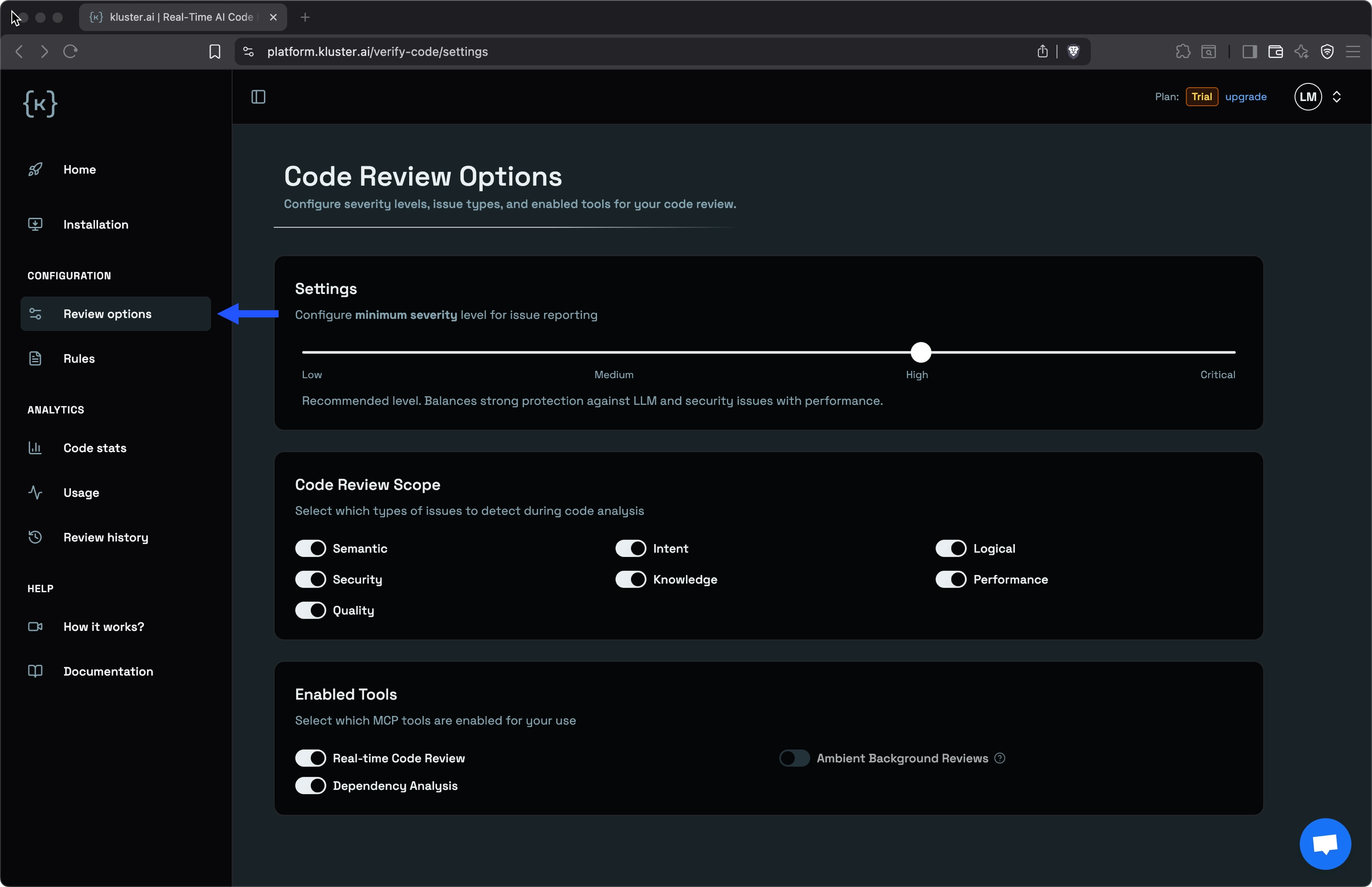
You can customize the kluster.ai Code Reviews behavior through the platform settings or directly in your IDE. The options page is available in the left-hand menu under Review options, where you can configure sensitivity levels for issue reporting, select which types of bug checks to run, and enable or disable specific MCP tools to match your development workflow.
Sensitivity settings#
Configure the minimum sensitivity level for the real-time Code Reviews issue reporting. Set your threshold based on your team's requirements:
- Low: Detects even the smallest potential issues.
- Medium: Suitable for projects requiring strong security and high code quality.
- High: (Recommended) Balances strong protection against LLM hallucination and security issues with performance.
- Critical: Focuses only on critical issues for faster iteration and smoother coding experience.
Choosing a sensitivity level
The ideal setting depends on your use case. In general, a High level is a good starting point, but you might want to set it to Medium for production workflows.
Code review scope#
Select which types of issues real-time Code Review detects during analysis. Each type specifies a category of issues the system can identify.
| Type | Description | Example |
|---|---|---|
| Intent | Code doesn't match user request | User asked for sorting, got filtering |
| Semantic | Meaning and type errors | Wrong variable type used |
| Knowledge | Best practice violations | Not following conventions |
| Performance | Performance issues | Inefficient algorithms |
| Quality | Code quality problems | Poor naming, complexity |
| Logical | Control flow errors | Off-by-one errors |
| Security | Security vulnerabilities | SQL injection risks |
Enabled tools#
Control which review tools run in your development environment. Enable or disable each tool based on your project's specific needs and workflow.
- Real-time Code Review: For code quality reviews.
- Dependency Analysis: For package and dependency security.
- Ambient Background Reviews (Beta, Enterprise plan): Automatic reviews that run in the background after you pause typing.
Analysis level#
Control review depth to balance between speed and thoroughness. You can configure different analysis levels for human-driven and AI-driven development workflows.
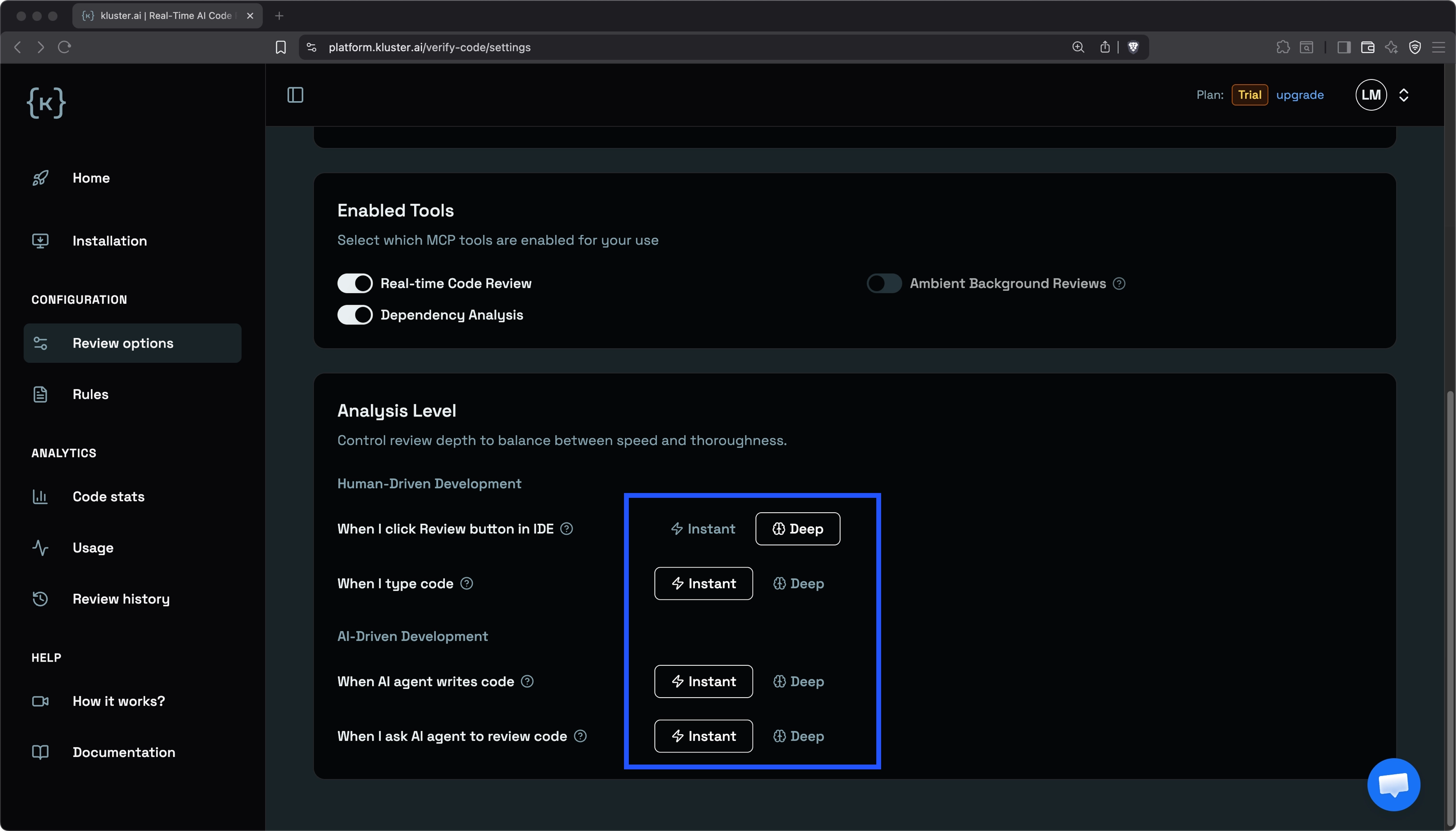
- Instant: Completes in about five seconds. Detects most issues and is suited for fast review and iteration cycles.
- Deep: Takes up to a few minutes. Conducts deeper analysis to uncover even subtle edge cases, ideal for critical code and final reviews.
Human-driven development#
Configure analysis depth for reviews you trigger directly in your IDE:
- When I click Review button in IDE: Runs an on-demand review that applies to the current file, uncommitted changes, or the active branch.
- When I type code: Reviews code continuously as you write, automatically analyzing changes and highlighting potential issues.
AI-driven development#
Configure analysis depth for reviews triggered through AI assistants:
- When AI agent writes code: Automatically reviews code generated by an AI assistant as it is produced.
- When I ask AI agent to review code: Runs a review when you explicitly request a review from an AI assistant.
The default configuration uses Deep for human-driven workflows and Instant for AI-driven workflows. For critical code, choose Deep regardless of workflow—use it for final reviews, production changes, and any time correctness matters more than speed.
Next steps#
- Create custom rules: Add project-specific development standards.
- View MCP tools reference: Understand the technical API details.
- Installation guide: Set up Code Reviews in your IDE.